 Share Blur
Share your screen.
Not your clients' data.
Share Blur hides emails, phone numbers, card numbers, API keys and the names you choose the moment you start sharing on Google Meet, Zoom or Teams. Stop sharing and your pages look normal again.
Add to Chrome, it's free- Turns on by itself when you share
- Nothing leaves your browser
- No watermark
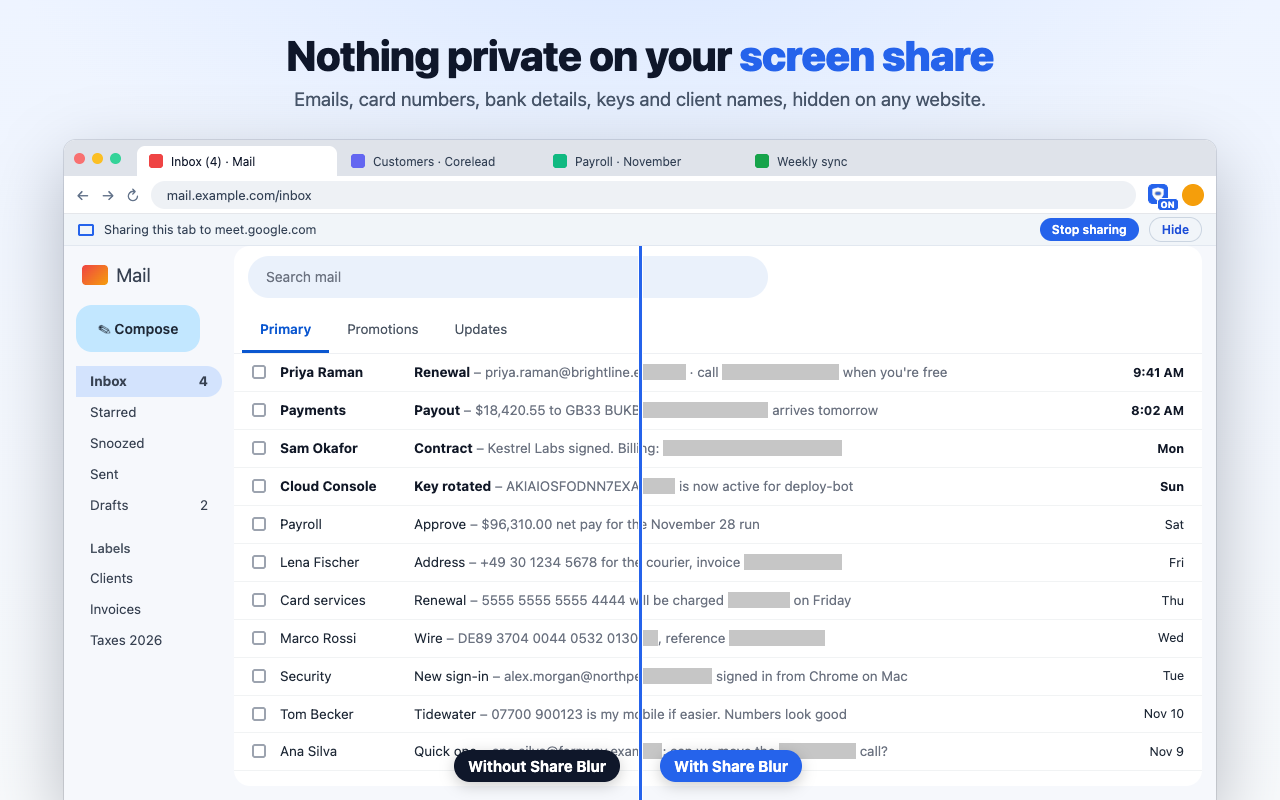
One wrong tab and the whole call sees it
You meant to show a chart. They also saw another client's name, a customer's phone number and the API key in your terminal.
Live calls
Demos, support calls and check-ins where you click around real accounts with real customer data.
Recordings
Loom videos and tutorials that get shared again and again, with every email in them.
Code and dashboards
Stripe keys, database passwords and .env files that are one scroll away.
Set it up once. Then forget about it.
No settings to remember before each call.
Add it to Chrome
A practice page opens so you can try every tool first. No account, no sign-up.
Share your screen
Start sharing from Meet, Zoom or Teams in Chrome. Private info is hidden on every tab before the share starts.
Stop sharing
Everything comes back. Your normal work isn't blurred for the rest of the day.
Hides it by itself, or lets you click to blur
Automatic protection for calls, plus simple blur tools that stay free.
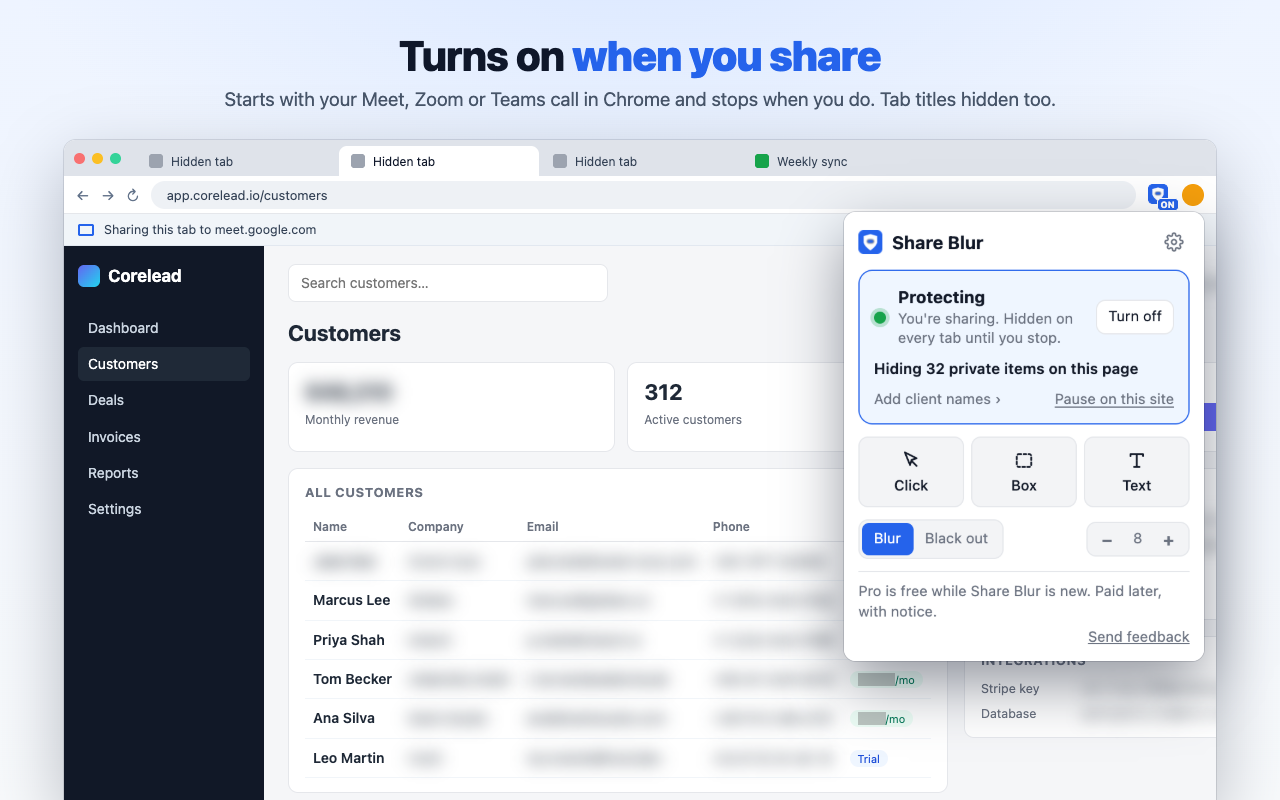
Turns on the moment you share
Share a tab or window from a call in Chrome and Share Blur protects every tab, then switches off when you stop.
- Emails, phone numbers, card numbers, IBANs and US SSNs
- Hides tab titles so your other tabs don't give anything away
- Using the Zoom or Teams app, or recording? Press Protect now (Alt+Shift+H)
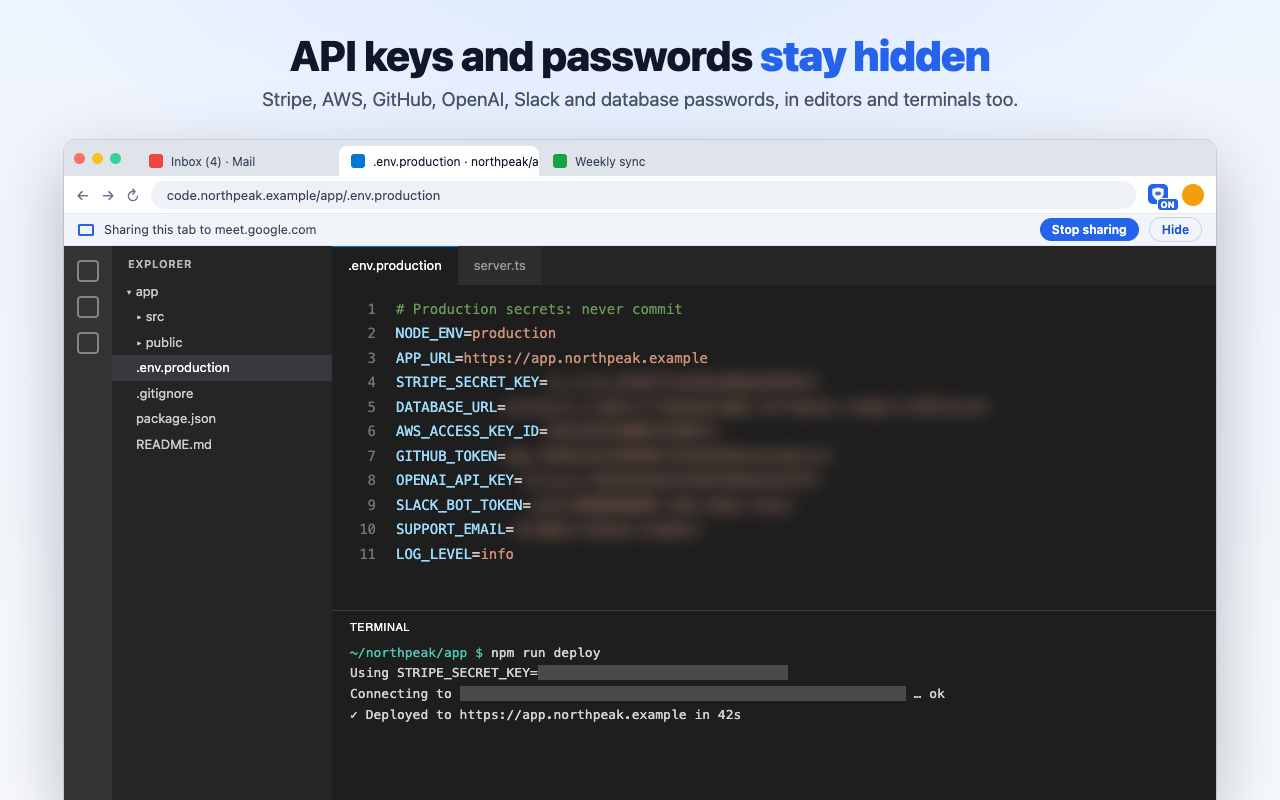
API keys and passwords stay hidden
Only the secret value is hidden, so viewers can still follow your code.
- Stripe, OpenAI, AWS, GitHub and Slack keys, private keys and database passwords
- My words: hide client names, project names or invoice numbers on every site (wildcards like
INV-*work)
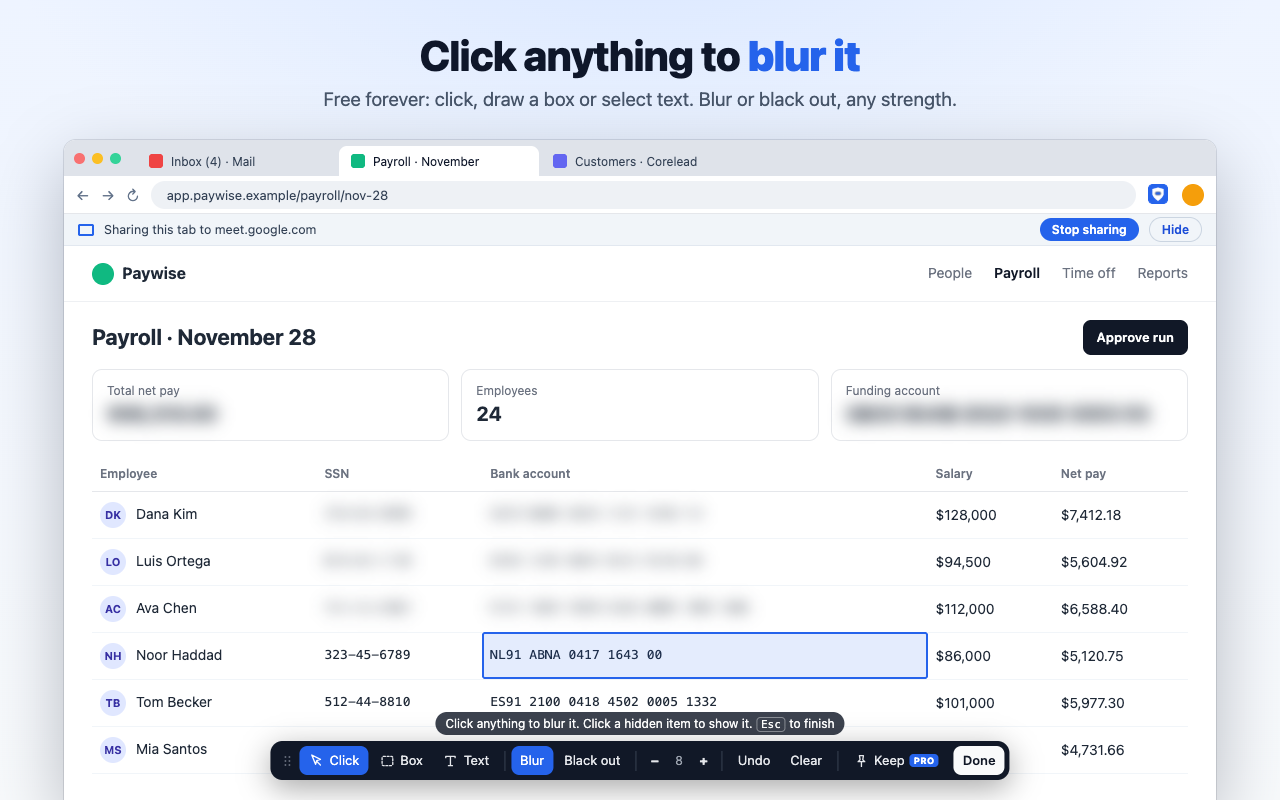
Click anything to blur it
Hover and click to blur, drag a box over a chart or photo, or select text. Blur or black out, with your own strength.
- Hide every email and phone number on a page in one click
- Hold Alt to peek, undo, or clear the page
- Or right-click anything and choose "Blur this"
Any call or recording tool
The blur happens on the web page itself, so whatever you share or record already has it.
- Google Meet
- Zoom
- Microsoft Teams
- Slack huddles
- Discord
- Loom
- OBS
- Screenshots
For anyone who shares a screen with real data on it
Agencies & freelancers
Work in one client's dashboard without the next client's name showing in a dropdown.
Support & sales
Walk a customer through their account without showing everybody else's.
Course creators
Record tutorials in real tools without hours of blurring in the video editor.
Developers
Demo your app with real keys in the terminal and nothing to rotate afterwards.
Finance, health & HR
Share screens with customer or staff records on them, with less to worry about.
Pro is free while Share Blur is new
Later, Pro becomes a one-time upgrade with no subscription. You'll be told inside the extension first.
Free
Forever. No account.
- Click to blur
- Draw a blur box
- Blur selected text or right-click "Blur this"
- Hide emails & phones on this page in one click
- Blur or black out, adjustable strength
Pro
Free during launch.
- Turns on by itself when you share, off when you stop
- Auto-hides emails, phones, cards, IBANs, SSNs, API keys and passwords on every page
- My words: your client names, IDs and patterns
- Hide tab titles and icons
- Protect now for desktop apps and recordings
- Keep: your hand-made blurs come back after a reload
- Pause on any site
A privacy tool that doesn't collect anything
Easy for your IT team to say yes to. Every permission is explained on our security page.
100% local
Pages are read on your computer. Page content and addresses are never sent anywhere.
No account
Nothing to sign up for and no licence key to type in.
No tracking
No analytics, no ads, no third-party scripts.
No scary warning
It doesn't ask to read every site when you install. Pro asks only when you turn it on.
Questions
Does Share Blur send my data anywhere?
No. Everything happens in your browser. Page content, page addresses and your settings never leave your computer. The only thing that is ever sent is feedback you type into the feedback box and choose to send us.
Does it see or record my screen share?
No. It only notices that a share started or stopped, so it can switch on first. It never reads the video.
Does it work with the Zoom or Teams desktop app?
Chrome can't tell when a desktop app starts sharing, so press Protect now in the menu (or Alt+Shift+H) before you share. It stays on until you turn it off. Everything you show in Chrome is then hidden.
Will my pages be blurred all day?
No. Automatic protection is only on while you share (or after you press Protect now). The rest of the time your pages look normal.
How much does it cost?
The blur tools are free forever. Pro is free during the launch and will later become a one-time upgrade (no subscription). You'll be told inside the extension before that happens.
What can't it hide?
It works on web pages in Chrome. It can't hide things in desktop apps, the address bar, chrome:// pages or Chrome's PDF viewer, and it doesn't read text inside images or canvas apps such as Google Sheets cells. Drag a blur box over those.
Why does Pro ask for access to all sites?
To hide private info on every page as it loads, before it shows on screen. It's asked for only when you set up Pro, everything is processed on your computer, and you can remove it in Chrome's settings at any time.
Which browsers does it work in?
Google Chrome on a computer. Other Chrome-based browsers such as Edge and Brave haven't been tested yet.